
How to use Claude for your business.
To use Claude for your business without coding, work in Claude Code inside the Claude desktop app, keep what Claude needs to know about your business in one folder, and set every action that sends, posts, or pays to need your approval. I started out non-technical, and Claude Code has since helped me build this website, a morning brief that lands in my inbox every weekday at 7 AM, and the time tracker I bill clients from.
- Get a paid Claude plan and open the Code tab in the Claude desktop app.
- Make one folder for your business and write down what Claude needs to know.
- Connect the apps you already use, and set anything that touches money or customers to need your approval.
- Start with one job you repeat every week, like a morning brief.
- Check what Claude tells you about your own setup before you rely on it.
 By Dani Furmenek · Published November 16, 2026
What does Claude do in a one-person business every day?
Claude Code does these jobs in my business now, and the morning brief, time tracker, and AI slop checks are public on GitHub, where anyone can copy the code.
| Job | What it does | Where to see it |
|---|---|---|
| Morning brief | Reads my calendar, inbox, HubSpot pipeline, and time log, then I get one page by email every weekday at 7 AM | Morning brief on GitHub |
| Time tracker | Logs my hours by client and catches a timer I forgot to stop | Time tracker on GitHub |
| AI slop checks | Flags the sentence patterns that make a draft read as AI | AI slop checks on GitHub |
| Video edits | Cuts my short-form videos to the edit preferences I’ve written down | My video on November 11, 2026 took about 23 versions before I approved it, and the one I finished on November 14 took 9 |
| This website | Builds and updates the pages you’re reading | Every page on prettysmartprompts.com |
None of these started as code I wrote, since each one began as a plain-English description of a job I was doing by hand.
Do I need to know how to code to use Claude Code?
You don’t need to know how to code to use Claude Code, and you don’t need the Terminal either. Claude Code runs in the Code tab of the Claude desktop app, where you describe what you want in plain English and approve what it does, and Anthropic’s own guide says “You don’t need to know how to code.”
What you do need is your business written down where Claude can read it, like who you serve, what you charge, and how you want things done. How I Trained ChatGPT and Claude on My Business shows what to write and where to save it.
Should I use chat or the Code tab?
Use chat to think and the Code tab to build. Both live in the Claude desktop app, which now combines chat and Cowork, Anthropic’s tool for running tasks on your computer (the combined version is rolling out to Pro, Max, and Ultra plans). Chat is good for questions, drafts, and Anthropic’s ready-made plugins, and the Code tab works on the files in a folder on your computer, so it builds tools you keep, like my morning brief.
Your projects in Claude chat don’t follow you into the Code tab yet, though Anthropic says support is planned. Until then, ask Claude in chat to write what it knows about your business as a Markdown file (a plain text file ending in .md), save it in a folder on your computer, and open that same folder in the Code tab, so the file carries your context over.
How do I keep Claude away from my money?
Keep Claude away from your money by setting every connected tool that can send, post, or pay to “Needs approval,” and by keeping Auto mode off when it works with those apps. A connector is the link between Claude and an app like QuickBooks, and you’ll find each one under Settings, then Connectors. Claude reads my QuickBooks, and that connector includes 47 read-only tools and 31 that can write or delete, like creating and sending invoices and payment links, and I set every one of them to need my approval.
Auto mode is the setting that lets Claude decide on its own which actions are safe to run. Claude’s settings screen says that in Auto mode it “may act without asking, even for tools set to ‘Needs approval,’” unless an automated check flags the action as risky. Nothing that can move money, pay a bill, or trade runs in my setup without my click, so I keep Auto mode off for anything that touches QuickBooks.
Should I start with the Small Business plugin?
Start with Anthropic’s Small Business plugin if you want a working setup today, and skip its QuickBooks and Gmail connectors until you’ve read what each skill can send, because its own listing says it can send data to other services and run code without asking. A plugin is a bundle of ready-made skills, or saved workflows, and this one costs nothing extra on a paid plan. Version 1.35.2 has 44 skills plus 35 connectors, including QuickBooks, HubSpot, Gmail, Google Calendar, and Canva, and every skill is built to pause before anything sends, posts, or gets paid.
I ran its setup on my own business. It scanned my Downloads folder without changing anything, found 18 old app installers taking up 32 GB, and deleted them only after I said yes. When QuickBooks needed reconnecting, it walked me through signing in myself instead of asking for my password.
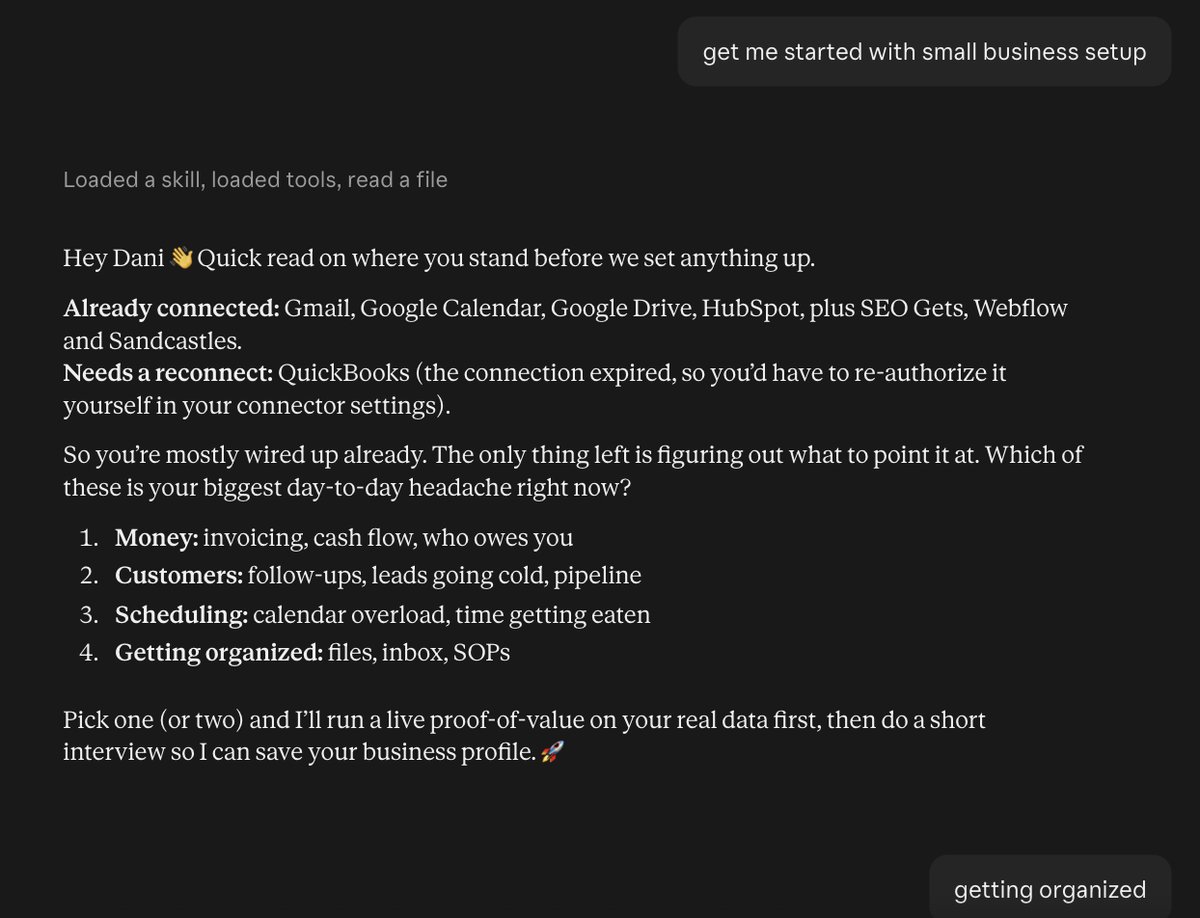
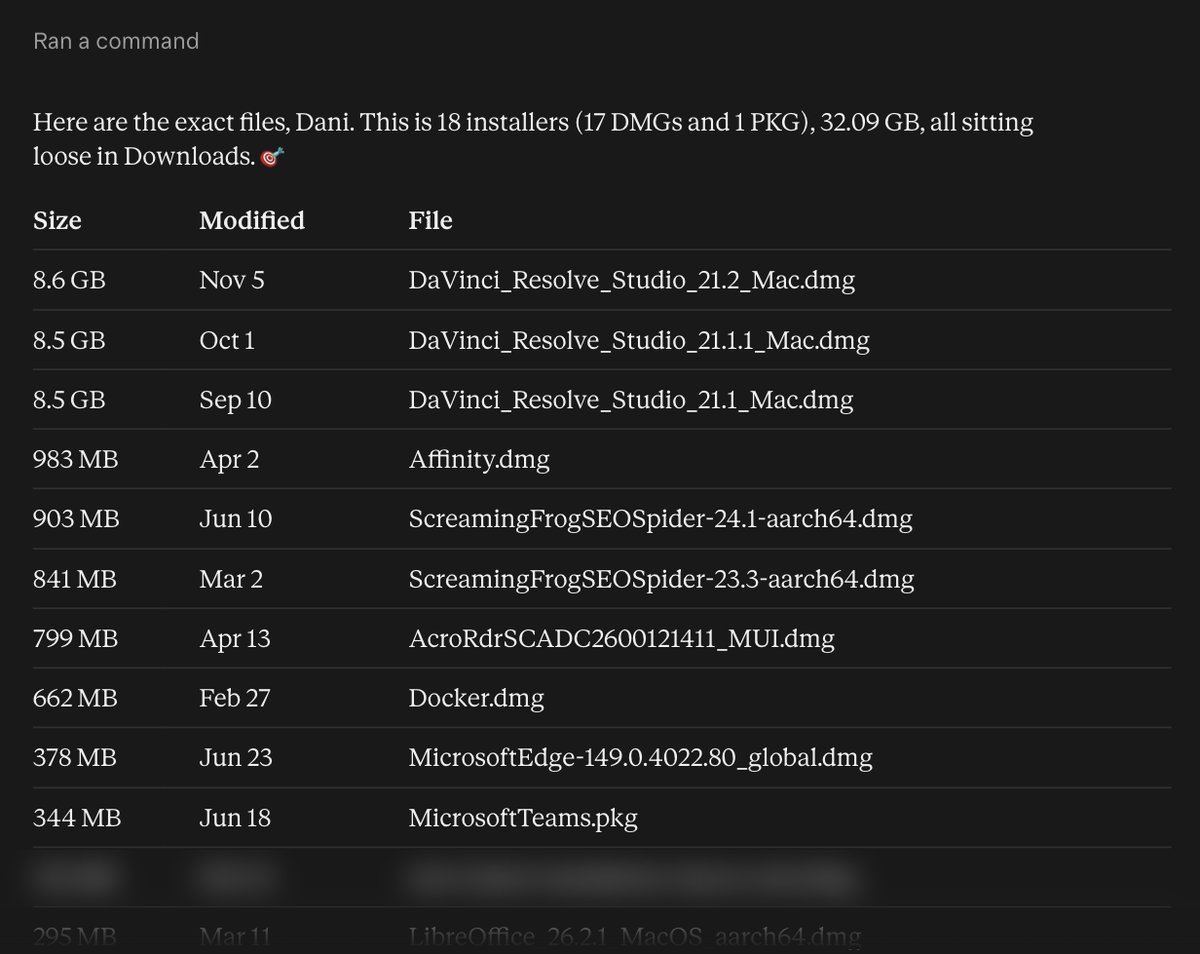
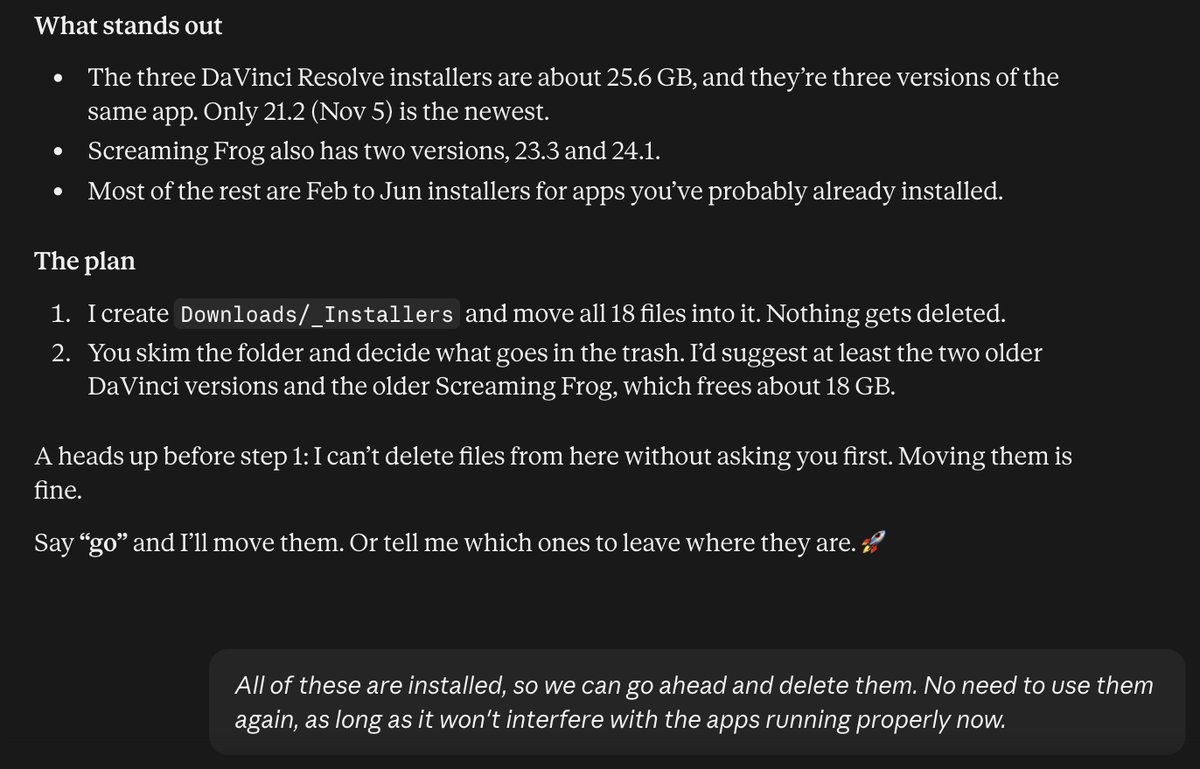
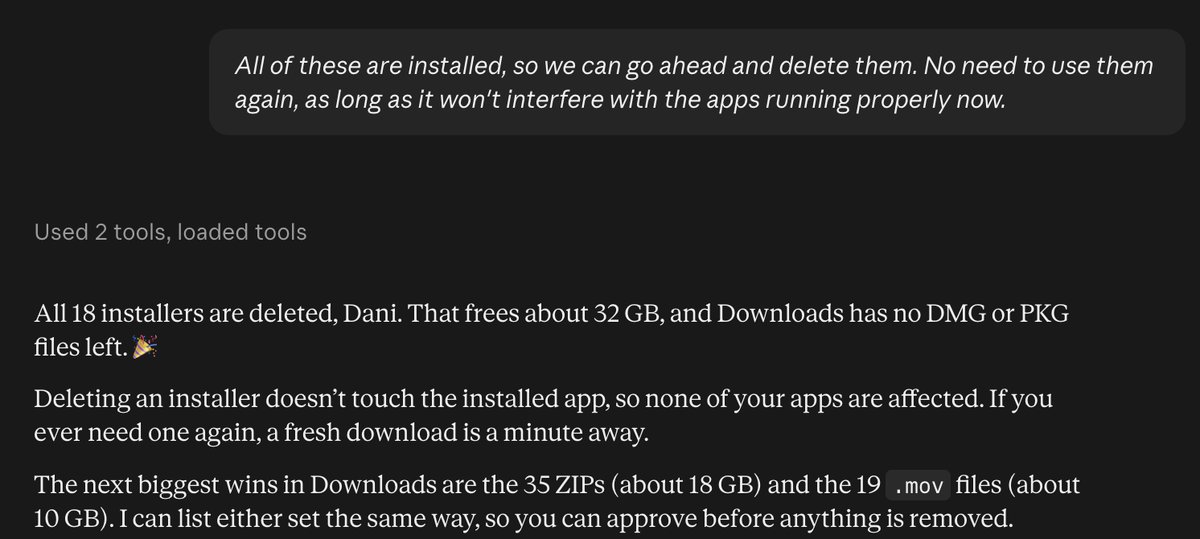
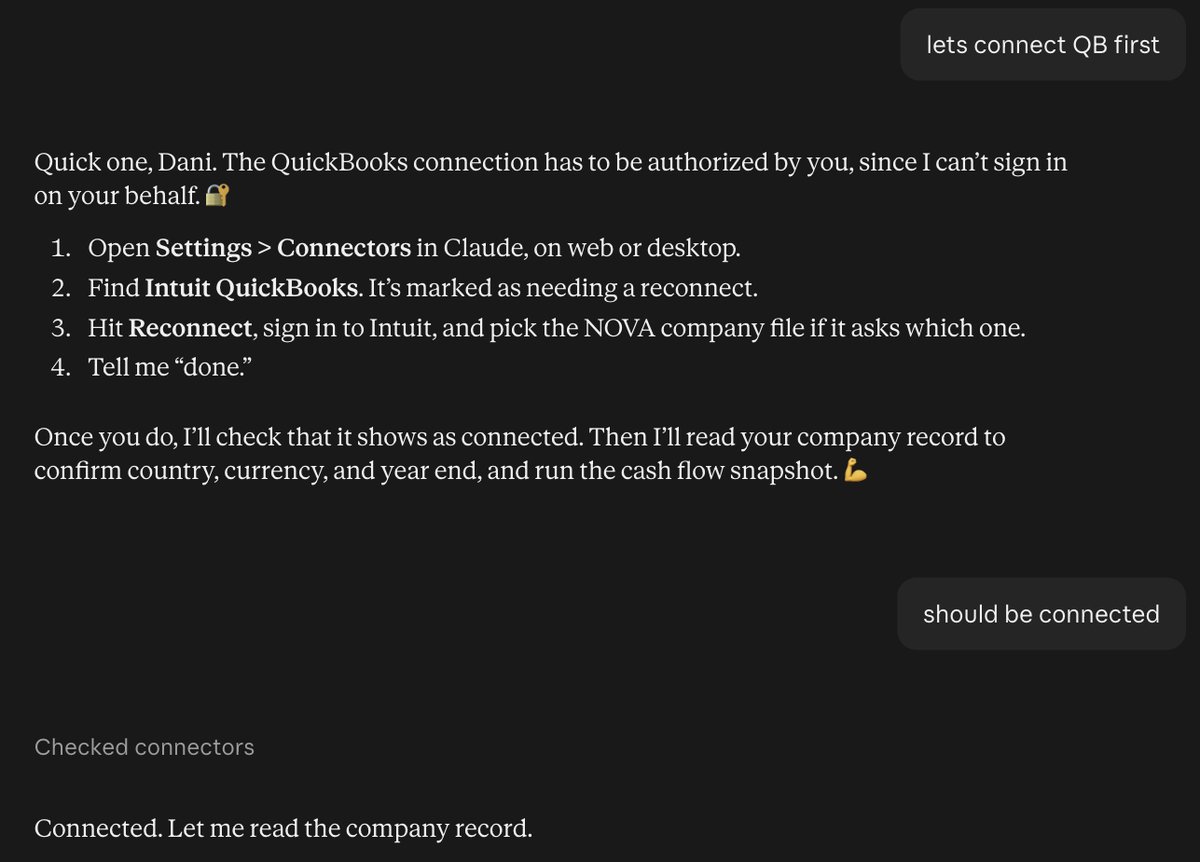
When I asked it whether it could run my morning brief, it told me the one I’d already built in the Code tab was better, because mine can’t send anything on its own.
How do I set up a morning brief without coding?
You can set up a morning brief without coding by describing it in a Code tab session and letting Claude schedule it. Start from my morning brief or build your own, and if you’re not sure how to describe what you want, ask Claude in chat to write the instructions as a Markdown file that you hand to the Code tab.
- 01Open the Code tab
and point a new session at a folder you made, like Documents/Briefs. Use a new, empty folder, so nothing else on your computer is in reach.
- 02Connect Gmail and Google Calendar
under Settings, then Connectors.
- 03Describe the brief and the schedule
in plain English, using the prompt below.
- 04Keep it read-only.
Tell Claude to let this task write only to your Briefs folder, and set Gmail’s send tools to Needs approval or leave them off.
- 05Run it once by hand
and tell Claude what to add or cut.
- 06Leave the app open and the computer awake at 7 AM,
because scheduled tasks on your own computer only run then. Look for “Scheduled” or “Routines” in the Code tab sidebar, since the name differs between app versions.
Copyable prompt
Set up a weekday brief at 7am. Check my Google Calendar and Gmail,
then write a short summary: today's meetings, emails that need a reply,
and anything due this week. Save it as a dated file in my Briefs folder.
Do not send or reply to any email.
My own brief works the same way, with one extra piece. Claude writes the brief to a file and stops, and a separate small script emails that file to my own address, which is why the Claude part never needs permission to send. The version on GitHub has the brief itself, and how it reaches you is up to you.
Where does Claude still get it wrong?
Claude still gets facts about your business wrong, even with your rules loaded. With my banned list loaded, Claude Code wrote “I check everything AI helps me make before it goes out” and “the mistakes AI made in my own marketing work” for this site, and both passed AI slop checks while being wrong about my business. How to Make ChatGPT Sound Less Like AI shows what replaced them.
I also tested Claude in chat with ten questions a beginner would ask about this setup. It answered eight correctly and two partly right, and both partial answers were confident guesses, one about whether Claude projects show up in the Code tab and one about what happens to a scheduled task when the computer is asleep.
The most useful answer came from “Will the brief be safe if someone sends me a sketchy email?” It turned up a weak spot in how my brief was originally set up, with broader permissions than the job needed, so I asked Claude to narrow them and tested the change before trusting it. Any scheduled task you set up should get only the permissions its job needs, and the final pass is always up to you, even on a tool that seems fine.
Which Claude plan do I need?
The Code tab needs a paid plan, and the $20-a-month Pro plan includes it. I started on Pro, moved up to the $200 Ultra plan, then came back down to the $100 Max plan so I could also pay for ChatGPT’s $100 plan to use Codex, OpenAI’s version of Claude Code. Max is enough for me because client work keeps me out of these tools for much of the day, and I’d move back up if I kept hitting the limits, the same upgrade point I describe in How to Use AI in Your Small Business.
Start with the tools I use every day.
- A morning brief that reads your calendar and inbox and writes you a one-page summary
- AI slop checks, which flag the patterns that make drafts read as AI
- Both free on GitHub, with no email signup
Sources
- Anthropic, Claude for Small Business, May 13, 2026, and the plugin’s own listing and README, version 1.35.2, checked November 15, 2026
- Anthropic, Schedule recurring tasks in Claude Code Desktop, checked November 16, 2026
- Anthropic support, Organize your tasks with projects in Claude Cowork and Use Claude Cowork on web, desktop, and mobile, checked November 15, 2026
- Claude pricing and ChatGPT pricing, checked November 15, 2026
- My QuickBooks connector settings, my morning brief’s script, and my video edit records, November 2026