How I Trained ChatGPT and Claude on My Business
 By Dani Furmenek · November 9, 2026 · Last updated November 9, 2026
You can't train ChatGPT on your business with one prompt you saved from Instagram or Threads. What works is giving it context every time, with a short description of your business saved where every chat can see it, plus notes it can read. Writing that description and saving it in ChatGPT or Claude takes about fifteen minutes.
An earlier version of this post first appeared on my Substack on August 5, 2026.
Open Instagram and look at your Saved folder. Somewhere in there, between the recipes and the outfit inspo, sit a few prompt posts you saved to try later.
Those prompts were written for a generic business that doesn't exist, and you run a specific one.
These came from one scroll of my Threads feed on August 4.


"Breaking: Claude Has a Secret Feature Called Social Media Manager Mode." "BREAKING: Claude can FIX your entire Instagram page like a $20K social media manager." "2,500+ god-level prompts for every scenario." There's no secret mode and no god-level prompt, just a genre of account that has figured out that promising magic words gets saves, and saves grow accounts, and grown accounts sell prompt packs. That cycle is the AI slop loop, and your Saved folder is its business model.
I think prompt packs are snake oil slop. The prompts in them aren't secret, and a prompt without your business details gets you the same generic answer as one you wrote yourself. You can find the same kind of prompts for free on GitHub, where the open-source library prompts.chat has more than 175,000 stars.
When a prompt works for someone, it's not because the wording was magic. The AI knew enough about their business to come back with specific usable material in the user's voice, and that's the part the prompt sellers always leave out. The same prompt with no context produces the blah, could-be-anyone output. In LangChain's State of Agent Engineering report (June 2026, 1,340 respondents), a third of respondents named quality as their biggest blocker, and the largest companies kept describing context management as an ongoing struggle.
I don't save prompts anymore. My AI reads a short description of my business at the start of every chat, and it can open a folder of my notes when it needs more. The three levels below walk you through building the same setup for your business.
Write down what your AI needs to know (Level 1, 10 minutes)
The context block is one dense, reusable description of your business that you can hand to any AI model whenever you start a chat. Anthropic's own documentation says to treat Claude like "a brilliant but new employee who lacks context on your norms and workflows," and their engineers' rule for context is to keep it "informative, yet tight." A tight block covering the right seven things beats a rambling biography every time, so open a fresh chat and run the prompt below.
Copyable prompt
Interview me to build a reusable context block for AI conversations about my business. Ask me one question at a time, and do not move on until you have a specific answer: 1) What I sell and at what price points. 2) Who buys it, described as a person and not a demographic. 3) The result clients or customers actually come to me for, in their words. 4) What makes my approach different from the obvious alternative. 5) My voice: three adjectives plus one writer or brand whose tone feels close. 6) My current business priority this quarter. 7) The constraints that never change, like solo operation, time budget, tools I use, things I refuse to do. When you have all seven, compress everything into a context block under 250 words, written in first person, dense with specifics and free of filler. I'll paste it at the top of future AI conversations about my business, so every line has to earn its place. End the block with this rule: when this block or my notes don't cover something, say so and ask me instead of guessing.
Check the draft line by line and correct anything that's wrong or out of date, then save it somewhere you can grab it fast, like a pinned note. If you stop here, pasting it at the top of a chat still gives the AI your business details before your first question.
If voice is the part that keeps coming out wrong, my brand voice guide has a five-line voice brief and a before-and-after edit you can use.
Save it where every chat can see it (Level 2, 5 minutes)
Pasting works, but it's better to save the block somewhere every new chat starts with it. Claude and ChatGPT both have Projects, and both offer them on the free plan. Create a Project for your business and paste the context block into the project instructions, and every chat inside that project starts already knowing you.
If you want the block in every ChatGPT chat, not only inside one project, put it in custom instructions instead. The free plan allows 1,500 characters there (paid plans get 5,000), so trim a free-plan block to about 230 words.
Most guides on this still tell you to build a Custom GPT. OpenAI is retiring custom GPTs, and personal ChatGPT accounts from Free to Pro can no longer create new ones, so a Project is the place for your block.
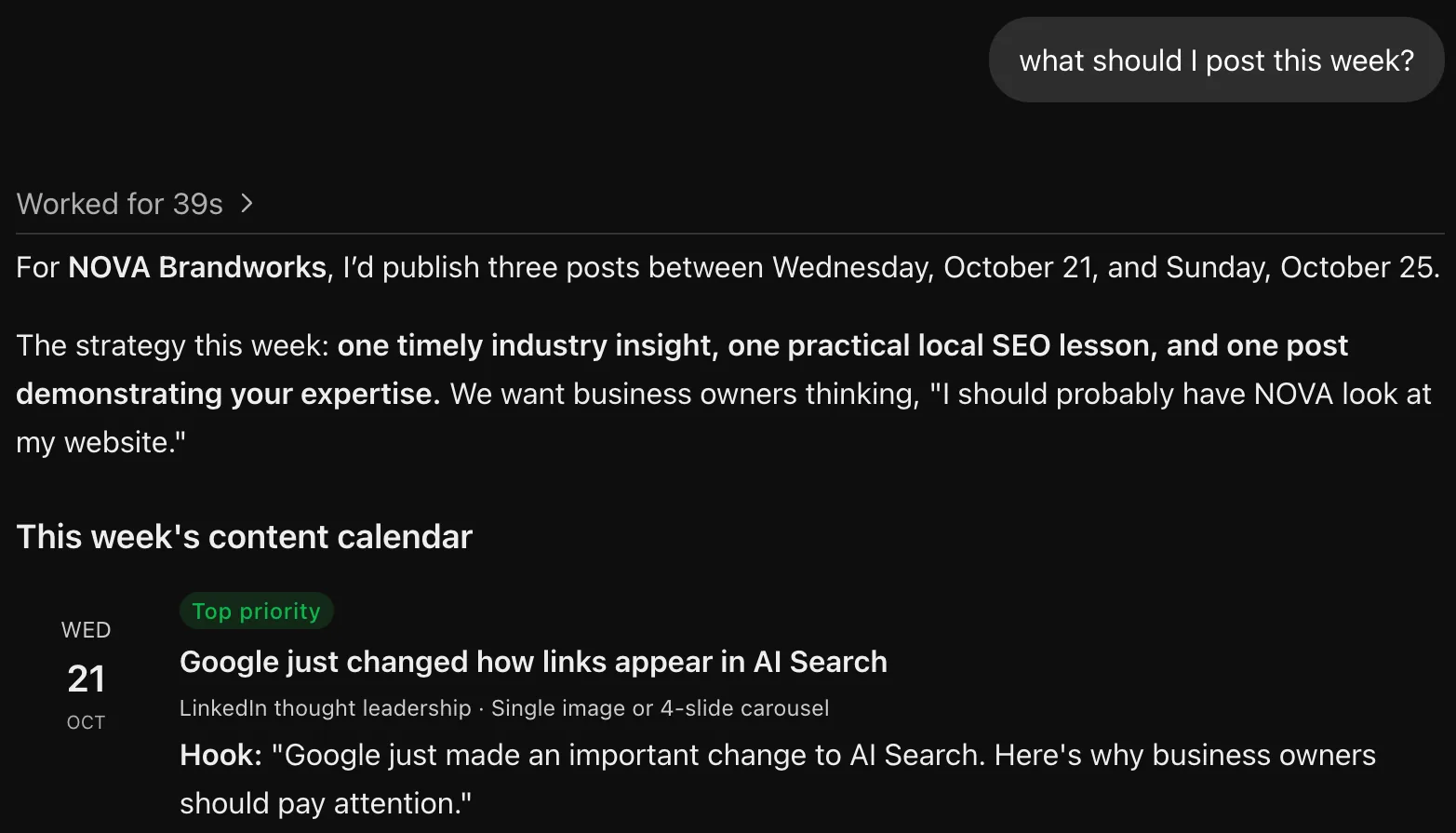
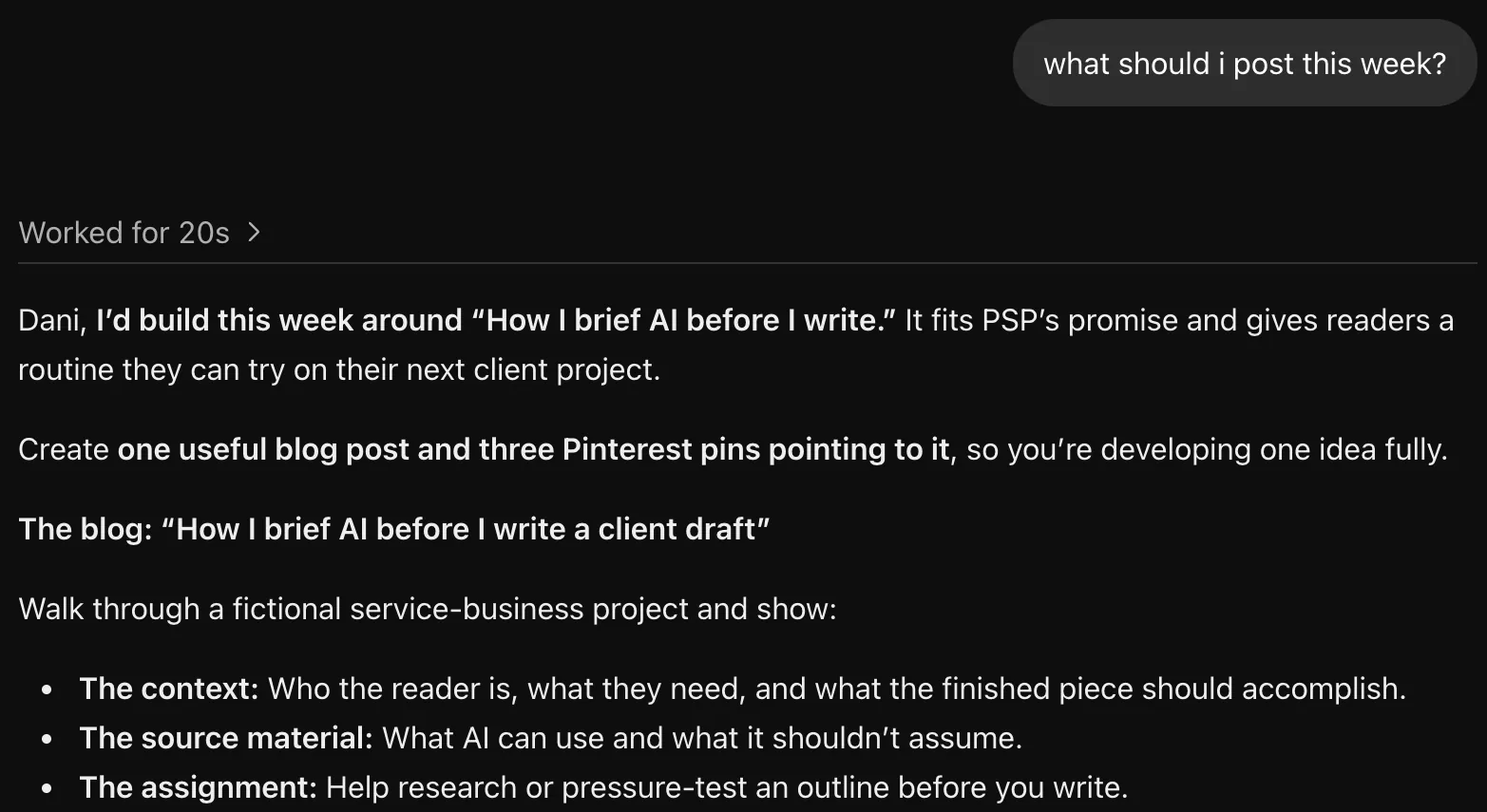
Either way, test it by opening a brand-new chat and asking "what should I post this week?" If the answer sounds like it was written for your business instead of any business, the block is doing its job.
Both apps also have memory now. Claude's is on by default, even on the free plan, and picks things up as you chat. Leave it on, but don't outsource day one to osmosis, because memory learns in fragments at its own pace, while the block hands your AI everything that matters before your first real question.
Before you paste in client details, check what each app trains on. On ChatGPT Free, Plus and Pro, your chats are shared for model training by default, and you can turn that off under Settings, then Data controls, then Improve the model for everyone. Claude keeps the same choice in its privacy settings under model improvement. Your block only needs to describe your business, so leave client names and private documents out of it.
Give it notes to read (Level 3, this weekend)
A context block covers who you are. A second brain covers what you know, and this is where Obsidian comes in. Obsidian is a free notes app that saves everything you write as plain text files in a normal folder on your computer, so an AI can read them.
Create a vault called something like Business HQ and start with just five notes:
- Business context. Your context block from Level 1, plus two or three real paragraphs you wrote that sound exactly like you.
- Offers and pricing. Everything you sell, current prices and what's included.
- Ideal client. Who they are, the words they use and the questions they keep asking you.
- Priorities. This quarter's priority, active projects and what you've decided NOT to do.
- Receipts. Wins, results, numbers and nice things clients said, because you'll forget them and the file won't.
When you notice you've done the same task three times, write the steps down as a sixth note, and that becomes your first SOP. My vault now holds eleven SOPs, from how I manage a Google Ads account to how I produce a blog post, so my AI follows the same steps I would.
Before I had them, I retyped the same instructions into almost every chat, like who my reader is, the phrases I never use and the checks a draft has to pass before it goes out. Now those rules live in my SOPs, and the AI reads them before I ask for anything.
The notes also drive my content planning. A scheduled AI job reads every note I've added since its last pass, grades each content idea out of 20 and keeps a ranked top 25, so I pick what to make next from that list.
To let Claude read these notes, the simplest option is uploading the five files to your Claude Project as project knowledge. When a note changes, upload the new version.
I use Claude Code instead, which reads the files straight from my vault folder, so it always works from my current notes. It runs in the terminal or inside the Claude desktop app and needs a paid Claude plan. On the free plan, the desktop app's Filesystem extension can read the same folder from a regular chat. Turn it on under Settings, then Desktop app, then Manage next to Extensions.
With either setup, your AI knows your offers, ideal client, voice and wins before you type a word of any prompt.

This is the graph view of my vault. The dots are notes and the lines are links between them. It took me a lot longer than a weekend to get here, so start with the five notes and add to them as you go.
To keep it useful, update "Priorities" when your focus changes and add wins to "Receipts" as they happen. The system gets more useful every week you keep it going, which is more than the prompt folder ever did.
I wrote my own block in August, when this site was about an AI tool list for solo CEOs. By October I'd rebuilt the site around four client-work routines, but the block still described the old offer and the old reader until I rewrote it. Part of my updated block now reads like this.
My reader runs a service business alone and handles the client work, the admin, and the marketing themselves. They've tried AI, got generic output, and don't trust hype.
Never: show client material, invent results or testimonials, promise a posting schedule, or publish any email except [email protected].
And whenever you meet a prompt in the wild now, you only have to ask whether it fits a task your business actually has. If yes, it'll finally perform the way the screenshot promised, because your system supplies the context the screenshot never could.
I'm Dani, and I run a one-person marketing agency on this setup. Notice that nobody sold you a prompt pack or a secret mode here. The context block is the standing layer under the brief I write for every client job, which is routine 02 in my free guide. The guide walks through that routine and the other three I use to keep client work moving.
Sources
- prompts.chat on GitHub (star count checked November 9, 2026)
- LangChain, State of Agent Engineering (June 2026)
- Anthropic, Claude prompting best practices
- Anthropic, Effective context engineering for AI agents
- OpenAI, Projects in ChatGPT
- OpenAI, ChatGPT custom instructions
- OpenAI, Data controls in ChatGPT
- OpenAI, Creating and editing GPTs (checked November 9, 2026)
- Anthropic, Model improvement privacy settings
- Anthropic, Claude chat search and memory
Catch what AI got wrong before you hit send.
- A one-page checklist for unapproved promises, unsourced facts, and broken links
- AI slop checks, a skill for Claude Code and Codex that reads your draft line by line for AI writing patterns
- Free to use, with no email signup
Got a "secret mode" claim saved somewhere? Send it to [email protected]. I'm still collecting them.